First year Digital Teacher Librarian, Tanya Jensen, has been collaborating with the Jefferson County Public Library (JCPL) and her English teachers to develop a website that supports summer reading at Standley Lake High School. The website functions like GoodReads, but has been created specifically for students; high schoolers can write reviews and search for titles based on genre and recommendations. In addition, the staff will participate and add their reviews to the website. The school's vision is to grow the site so that it is an easy way for students to locate books of interest, based on peer reviews. Students can also submit suggestions for books they want the library to purchase in the future.
The summer reading program has changed from giving students a list of books they have to choose from, to allowing students the freedom to select any book they want. Students that don’t know which book to choose will now have this peer-generated list of recommended books to guide them. In their English class next fall, with the support of the Digital Teacher Librarian, students will write book summaries and reviews for the website.
The kick off for the summer reading program at SLHS is during during Literacy Week, which falls from April 24th-28th. The JCPL team and Tanya are working together to introduce the students to as many books as possible in a short amount of time through a book speed dating activity. There will be tables based on genre, and the students will peruse the books for five minutes at each table to determine where their interests lie. Students will be provided with bookmarks to jot down interesting books they discovered. If students find a title they want to check out, they will be able to do so through JCPL. On Friday, April 28th, Barnes and Noble will visit the school for a mini book fair, where students will be able to purchase books that match their interests.
The staff is excited about this exciting new website, and they feel this will be a better fit for students to find books that match their interests. The JCPL summer reading program entices teens to read through the summer by awarding an Eliche's 1-day pass to the first 5,000 readers, achieving 8 hours or more. The Jefferson County high school with the most readers will receive an $800 prize.
Chrome devices run on Google’s Chrome operating system, and they deliver applications over the internet. This means that software is primarily web-based and does not need to be installed. They provide easy access to all the G-Suite tools so work can be collaborative, apps can be integrated and work is saved continuously to the cloud. Chrome devices boot up quickly so very little class time is wasted waiting on a device. Chrome devices, unlike Windows devices, actually get faster with age as new operating system updates get installed. But let’s face it, the best thing about Chrome devices is the budget-stretching low price.
Which Chrome Device?
Jeffco is now offering many different flavors of Chrome devices for purchase, so how do you match the right device to the right instructional purpose? The key is to begin with your learning goals and teaching vision in mind, and then choose the device and tools that can help teachers and students achieve those goals. Look through the slide deck for details about each device type.
What are some other considerations?
What do you need to know if you are making a change to Chrome devices from Windows devices or iPads? Chrome devices do not run “installed software” like Microsoft Word or Smart Notebook and they also do not print. This can be a shift, especially for teachers currently using a Windows laptop as their primary device. For students or teachers moving from iPads, the new touchscreens on Chromebooks and flips can ease the transition. Not all iPad apps are available for Chrome devices. Although this might take a little exploring to discover a Chrome app, extension or web tool that has a similar functionality, new apps are added daily.
Do you ever have students hold up whiteboards to show their answer? Maybe put student work under the doc cam? Do you ask students to share a document with you so you can share it with the class? Now you can do all of these things with a Chromebook and a projector. The ability to cast with a Chromebook is now here for Jeffco. Similar to using an iPad with Air Server, Cast for Education lets you share your computer screen from one Chrome browser to another.
Teachers invite individuals or groups of students to cast by selecting individual email addresses or by inviting classes that are set up in Google Classroom. Students have the choice of casting one tab or their entire browser. Teachers will be prompted to accept or deny the requests. Sharing ideas and thinking digitally is easier. Now teaching and learning can happen anywhere in the classroom.
Things to Know:
It is free.
Only one screen can be casting to the teacher's device at a time.
It DOES work with Chromebooks, desktops, and laptops.
It DOES work in a BYOD environment
It does NOT work with iPads.
Here are some directions to get you going or contact your Ed Tech Specialist for help:
Jeffco's Educational Technology Team visited 3 Apple Distinguished Schools in St. Vrain Valley Schools, as part of Apple's school visit program. Although these schools were 1:1 iPad schools, the following 5 strategies can be implemented at any school site to aid in integrating technology.
Flip through our presentation to view the strategies and see some examples from real school settings.
If your school is implementing any of these these strategies, please share your success with our team! We'd love to see your photos and hear your ideas!
Often times in education, technology is viewed as a piece of "curriculum dessert," a tasty tidbit that only gets touched after the content is taught and the students need to demonstrate their learning at the end of a unit. Technology isn't a dessert at Swanson Elementary, it's the fork that helps the students digest their learning. Here, Kendra Geise, Elizabeth Hall, and Crystal Parson (the 3/4 literacy and social studies team) have made daily technology integration part of their classroom culture.
The team credits the school's administration, digital teacher librarian, Shannon Feely, and technology committee for creating a shared belief among the staff that technology has a valuable place in the education of their students. "We don't do tech for tech's sake. That's not okay. It's not about the bells and whistles," Shannon shares. Instead, it's about the shared value of taking risks and failing. "[At Swanson] it’s okay to go ahead without knowing the answers. We don’t know how it’s going to work, but we are going to try it," she says. "Our teachers know good instruction and they know how to get the best from our kids." Shannon has trained the teachers on how to use technology to redefine their instruction. Rather than having students consume content through technology, the students are creating, collaborating, communicating and critically thinking in ways that were once inconceivable without the use of technology. At first, "It was all about the app, and now it's just the way we do things," the team says. "We are being more reflective on our practices. We stopped creating huge projects and are making small changes every day. We are picking 3 or 4 things [students] can use really well for productivity, rather than a whole bunch of new things. The students are becoming more proficient at using them and they really know what the tool can do."
Kendra, Crystal and Elizabeth also believe Google Classroom, a tool that creates a digital workflow for students and teachers, is another factor that has challenged and changed the way they are planning and delivering content to their students. "We are always thinking about where we can add technology...We think about what we are going to share with our kids in [Google] Classroom and what questions we can ask." Google Classroom has allowed the team to to be more effective with its assessment and its differentiation. The teachers make more exit tickets, collect more data, and provide more instant feedback than they had in the past. Google Classroom has had an impact on the team's students, as well. Students are more organized, they know what to get done, and they can see what's missing. There's no longer a question as to whether or not an assignment has been completed, and student's aren't singled out when work is incomplete or needs to be redone.
The path to integrating technology hasn't always been seamless. The team was purposeful in teaching digital citizenship to its students and modeled clear expectations about using the technology for learning. At the core of it all was an honest conversation with their students about respect for people and respect for their educational tools. Kendra, Crystal and Elizabeth trust their students to make responsible choices with their technology; the trust can be easily broken, but it can be earned back. The team has also worked through its fair share of technology glitches. The teachers' advice? "Be okay with those screw-ups when tech goes wrong. Turn it into a teaching moment. The kids are resilient with technology. They can problem solve the things [teachers] are fearful of and can figure it out before we will. They are the greatest teachers. You have to trust yourself that you are just as resilient as they are."
Check out the video to see what Swanson's 4th grade students have to say about technology in their classroom!
Reflection is a crucial element of modern pedagogical systems. Today’s educational practices place a high importance on the ability for students to self-assess and build meta-cognition through reflection. Using Schoology for this task makes this work easy for both the students and teacher. Using digital journals, students can journal on their own device, on a classroom device or from home.
Building individual discussion threads only one time for each student using Schoology discussions is an easy way to support this practice. The following presentation identifies 4 easy steps to set this up.
Some Benefits:
This method provides privacy between you and the student.
Able to start conversation and follow-ups with students.
Doesn’t have to be graded/assessed.
Posts are ongoing, chronological and archived.
Are you ready to start your students in digital journaling? Ask your school Digital Teacher Librarian or Educational Technology Specialist for support in getting started.
So much to be done! So little time! The pressure on teachers to get everything done by the end of the school day is formidable. How do you cover the curriculum and allow students to be active learners? Take a baby step into the world of Blended Learning. Blended Learning is “blending” the best of both worlds...the face to face interaction of the classroom with the flexibility of online activities such as discussions, video instruction, content delivery, and group work. Whether it is through a 1:1 environment, or the use of just a few student devices/computers in the classrooms, blended learning will save you time and energy in effectively and efficiently covering the content that needs to be covered.
One of the most useful things in presenting digital content is to use a source’s embed code. You can embed many things to your webpage or learning management system, like Schoology, and get rid of paper and textbooks!
What is an embed code?
How is an embed code different than a link? An embed code allows users to take content and place it where they want. A link will take you away from wherever you are on a webpage or Schoology page and take you to the source. That’s not always most efficient or effective when you want students to use the information presented to them and do something with it, like submit an assignment or take a quiz. The best part of embedding is that the only thing you need to know is how to copy and paste.
What kinds of things can you embed in Schoology?
YouTube videos
Google Maps
Google Presentations
PDF documents
This presentation provides you specific steps in embedding 4 different types of content into a Schoology page, discussion, assignment or quiz.
Alyssa Davidson teaches 9th grade Earth Science at Ralston Valley High School. Instead of relying on a predetermined lesson plan, Davidson uses formative assessment to guide student learning and direct instruction. I recently observed Davidson to see how she integrated technology and formative assessment into her instruction. Upon entering the classroom on Monday morning students were immediately engaged in the learning content. Davidson invited students to take a short four questionSocrative quiz to help determine where they were in their learning. Davidson clearly explained to the students that no points were attached to the formative assessment. This made students feel at ease and comfortable to answer the questions to their best ability. The class then discussed the answers to the quiz questions. To stay mobile in the classroom, Davidson controlled what appeared on the class SMARTboard through her iPad. Airserver is an easy, inexpensive tool to enable mobility in the classroom. By using the AirPlay feature on your iPad and Airserversoftware onto the device that is attached to your projector (laptop or desktop computer with a wireless card installed) you have the ability to mirror content from your iPad onto your projector.
Students then used the data feedback from the quiz to determine the next steps in their learning. Davidson asked students who missed one or more questions or just wanted more instruction on the prior content to join her in one side of the room. Students who answered all of the questions correctly were allowed to move on and begin exploring a new topic. Davidson provided these students with reading materials and Ed Puzzle videos to hold their engagement. Ed Puzzle is a web tool that allows you take any video from YouTube, vimeo, Khan Academy, etc. and adjust it to meet your specific needs. Questions and comments can be added throughout the video.
As students moved on to their individualized content, Davidson started a Pear Deck Activity. Pear Deck is an interactive presentation tool used to actively engage students in social learning. Davidson has been using Pear Deck for a little over a year. She finds it very easy to use because the interface is intuitive and the customization options are limited. This forces students to focus on the content and questions rather than the appearance of the deck. While there is a free version available, Davidson prefers the paid version for her Earth Science classes. The drag-able and drawing questions are critical for diagram interpretation and she has the ability to collect more rigorous data about student understanding than the traditional multiple choice platform. Davidson recently surveyed her students and found that “Pear Deck was the activity in class that best supports student learning and is the most enjoyable. It has also made students more comfortable making mistakes. Since there is an ask again option, they know that if their response is incorrect or needs some editing, they will be able to revise it”.
Davidson’s classroom reflects a learning environment where students are curious, engaged and in control of their own learning. By utilizing tech tools, Davidson is able to provide a unique learning experience. If you would like to try Pear Deck here are some of Davidson's tips for success:
Use the free trial wisely, make the most of your 30 days!
Read the Pear Deck blog, they share some fantastic content
Show your students how to access the Takeaways at the end of your first presentation.
Email Pear Deck if you have questions, it’s a small team and they respond quickly.
For more information on how to get started using Pear Deck in your classroom, check out the following video.
Bob Santone, Math teacher at Jefferson Jr/Sr High School, uses his interest in educational technology to help his students apply math in real life. He integrates technology into lessons and projects so that students see, hear and do the math.
In class he uses the whiteboard to display his instruction, and a TV with AirPlay to have students display their work without interrupting the flow of the lesson on the board. Other students use both these visual aids to stay on track.
On their iPads, students click on the web links in the Schoology assignment, upload the PDF of the lesson into Notability, open the Desmos graphing calculator - switching from one app to another with a quick double-click of the Home button to apply their learning.
The brief video gives a glimpse of his class in action, showing students app-smashing and Bob's use of Nearpod's drawing function for real-time formative assessment and correcting misconceptions on the spot.
Bob can direct the lesson on his iPad from the back of the class using AirServer as he walks around giving students just-in-time help, or he can use the SMARTboard to toggle between his SMART notebook lesson, Schoology, Google Drive, information websites, and his iPad with its myriad of powerful apps.
The students have access to iPads, a few class Chromebooks and graphing calculators, and many use more than one device simultaneously in order to have multiple displays and work more efficiently or collaboratively.
For deeper learning on any of these applications, use the Ed Tech website, or contact us for help. Thank you, Bob, for the inspiration!
The backchannel is a digital conversation that runs concurrently in a face-to-face interaction. For example, adults might turn to Twitter to join a digital conversation while watching a presidential debate or an awards ceremony. Where as, we might ask our students to engage in a literature discussion while listening to a read aloud or analyze information during a geography lecture. A range of tools can be used to facilitate this exchange. When working with students, Schoology, Padlet, and Today's Meet are all quick and easy tools which can be used to hold backchannel discussions in order to engage all your students in digital conversations that increase engagement, provide spaces for DOK questioning, and build a digital footprint of thinking and learning.
Why would I use the backchannel with students?
Click on a grade level to read how real life teachers engage their students in the backchannel in order to: increase processing time, give a voice to all students, engage in collaborative writing environments, practice increased listening skills, allow students thoughts to develop over time, and to make thinking visible.
Socratic Seminar and the Backchannel for “The Alchemist”
Teacher Considerations
Will utilizing a backchannel conversation bring down comprehension?
Listening and writing about related topics is different than multi-tasking.
"...[C]ognitive psychologists make a distinction between task switching and parallel processing. Task switching involves the rapid alternation between two or more tasks. In contrast, parallel processing involves the simultaneous performance of two or more [related] tasks." (Carriera et al., 2009)
Will students be inappropriate online?
Providing our students with authentic writing opportunities allow them to practice digital citizenship skills. Just like any classroom routine, setting up clear expectations and rules is an important step. Consider this rubric created for backchannel contributions.
Teachers should always be a presence in student discussions, whether as a contributor, or posting the backchannel chat on the board for all to see.
Not all students need to be on a device; consider designating roles. In a Socratic Seminar model, some students are engaged in a face-to-face discussion while others are on devices for the backchannel.
Common Sense Education has developed a free K-12 curriculum to "empower students to think critically, behave safely, and participate responsibly, in our digital world" (Common Sense Education). These lessons are aligned to the ISTE (International Society for Technology in Education) standards and are now directly available in C-CAP by grade level bands.
How to Access Resources for your Grade:
1. Step 1: Select the ISTE YAAG for your Grade Level Band (K-2, 3-6, Middle, or High)
Don't have the ISTE YAAG added yet? Directions included below:
Step 2: Visit Stage 3 for links to individual lessons
Please note the first time you access a resource from Common Sense Media, it will prompt you to create an account.
It’s just after 8:00 am at Molholm Elementary as I walk into Amy Clink’s 1st/2nd split classroom. There’s the quiet stillness in the room. You know the one. That moment when everything is ready to be learned...just waiting for eager minds to reach out and grab it. From the moment you walk into her classroom, you know you are not in the average classroom. Amy’s classroom set-up is a bit unconventional. Desks are in the familiar pod groupings but desks are at different heights. Tall desks are for students who want to work standing up and low desks for students who prefer to kneel. There are exercise balls and T-stools (stools for balance) for sitting. It’s clear right away that students are the focus of her teaching style. (You can read more about her unique set up in the Lakewood Sentinel. ) The students come in with a fresh dusting of snow on their shoes. As they stomp it off, Ms. Clink gives the directions and within minutes, learning is off and running while students settle in for Dictado.
Ms. Clink reads the Dictado for today and students begin to write. When they are finished. She plays a video of her doing the writing. Dictado requires that teachers model the correct writing of what the teacher has just dictated. Amy records the Dictado using the recorder in SMART Notebook, then plays the video for them. She can stop it and rewind it as needed. But because she’s not chained to the board modeling the writing, she can walk around to monitor her students’ progress. She is interacting with her students, checking their work, rather than standing with her back to the class. As the students move on to their Literacy Block time, there is an excitement in the air as they grab their iPads.
Molholm is in its third year of being a 1:1 iPad school. Amy was starting her second full year of teaching and was eager to jump into the work. But she will be the first person to tell you that it’s not all about the iPads. It’s more important to pick the right tool for the work.
As students move on to their Literacy Block, Ms. Clink goes through the directions for every activity. Throughout this time, they have a classroom discussion on which tool or tools would be best for the work. For example, for “Read to Someone”, they would use MyON on the iPad because each person can have their own copy of the book. But for “Read to Self”, they would choose a book from their “Book Bag”.
But the discussion goes beyond just a book vs. iPad. The students also discuss what tool on the iPad they might use. Ms. Clink shows the “Work on Writing” group a “Look It Up Quiz” where students will answer questions about weather. Students share the different apps or websites that will help them look up the right answers to the quiz.
And then, one student mentions that he lost iPad privileges and students discuss his options. Amy admits that having clear iPad expectations and sticking to them is key to successful iPad integration. She does random iPad checks with her students. During a free moment, she will pick up an iPad and quickly check the books in MyON and the history in Safari. Most of the time, students stick to the guidelines, because students don’t want the consequence. But she always has an alternate activity for students that lost their iPad privileges.
A small group of students quickly gathers at the table. She has MyON pulled up on her iPad and she shows them a book. Students quietly search for the book and add it to their shelves. She explains that MyON is not just an app for students to use independently. She uses it with small groups because she can guarantee that each student will have a copy of the book - not always true when you’re vying for books in the Book Room.
As the Literacy Block winds down and math ramps up, Ms. Clink takes the time for a Brain Break. She is passionate about Zumba and has passed this on to her students. She keeps a playlist of songs at the ready so her students can easily enjoy a fun break.
After the break, students know it’s time to start math. Teaching math in a 1st/2nd split is no easy feat. But her classroom runs like a well oiled machine and the technology definitely makes it easier. Amy utilizes files that she has created in SMART Notebook to get the students’ math engines revving.
As they move into the lesson, Ms Clink has students use the app, Number Pieces, to help solve math problems. Remember all those painstaking hours spent passing out manipulatives to students? The passing out of white boards and markers that always ran dry. And then all of those bits and skinnies...Inevitably, they were lost, chewed or even thrown across the room. This app is the answer. With the app, students have access to all the manipulatives they need with the touch of a finger. She AirServes Number Pieces on her iPad as she writes an addition problem for her students. They all quickly start to solve in, using a method that works best for them.
Collaboration, Communication, Creativity and Critical Thinking through Coding: A Showcase of Learning Across Jeffco
A Newly Released White House Initiative
The white house released a new initiative for computer science in January. The initiative, known as "CS (computer science) for All" is designed to empower all students, from kindergarten through high school, to learn computer science and develop the skills they need to thrive in a digital economy. With the rapid shift of technology in our economy, educators and business leaders are recognizing that computer science is a now a basic skill for students to be able to persevere in the work place.
Hour of Code
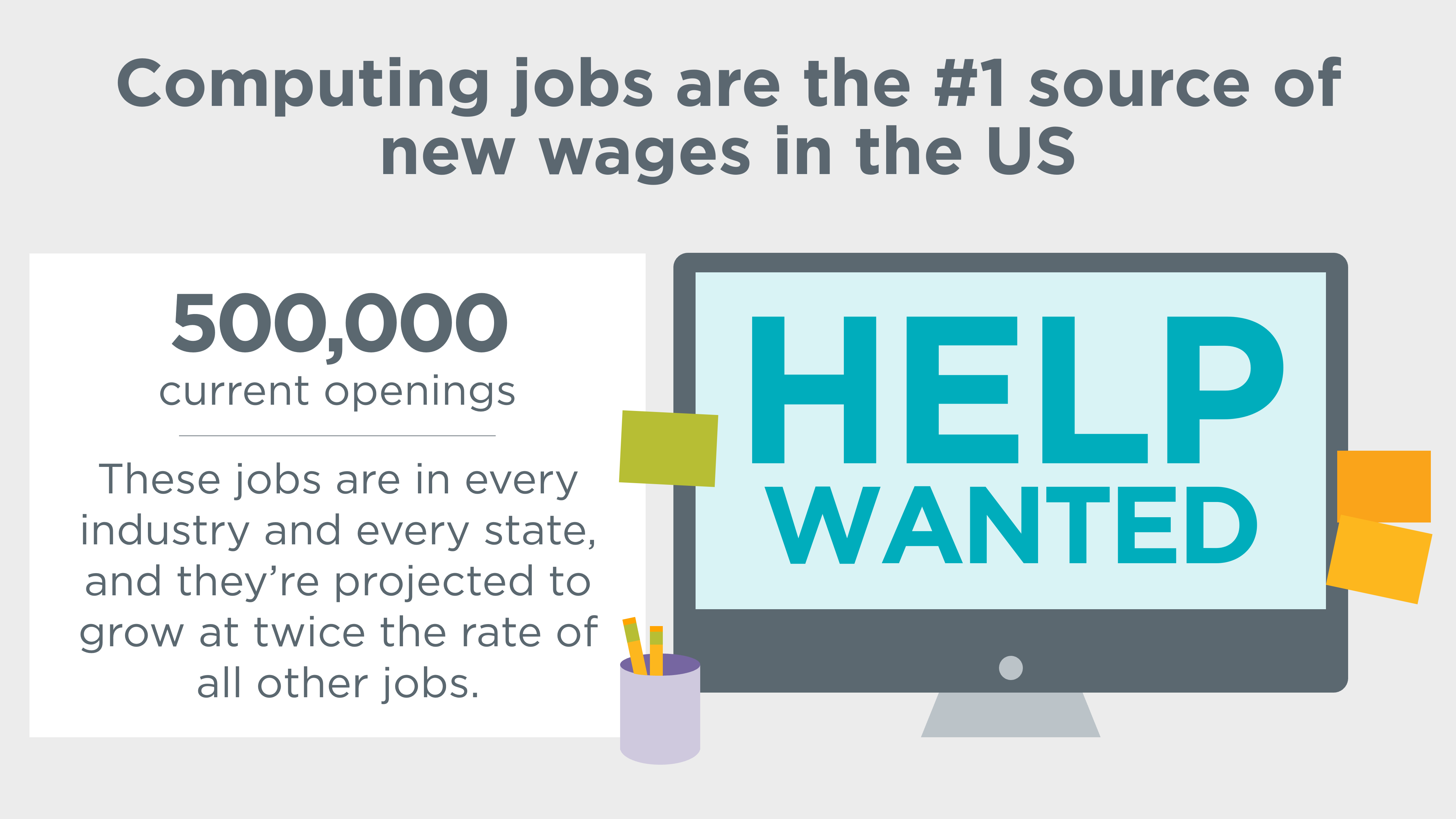
Last year more than 600,000 high-paying tech jobs went unfilled in the US, due to lack of college graduates with a degree in computer science. Hour of Code is a grassroots movement that provides students an introduction to computer science, showing that anyone can learn the basics.
Computer science provides students opportunities to be active critical thinkers and creators in real world applications- not just consumers of technology. Through Hour of Code, Jeffco students focused on problem-solving, stamina, logic, collaboration, cooperation and perseverance.
From Jeffco Teachers...
"We focused on how working through struggles and succeeding is the sweetest kind of success." -Andi Johnson, Fairmount DTL "We were invited on a HOC chat, please see https://www.youtube.com/watch?v=2O1cKfH8Vck"
- David Williams, West Jefferson Middle School
"Failing and trying again- perseverance!"
- Angie Wagner, Devinny DTL "This was like a tidal wave of excitement. As soon as a few kids were introduced, they shared it with their friends and siblings...there will be no stopping them." - Lisa Polacsek, Fremont DTL Need Ed Tech Support? Follow this link to contact us!
The second grade classrooms at Swanson Elementary buzz with movement and conversation as excited students proudly display their work to their parents and peers. At first look, it is obvious that this is not the typical classroom. Kids and parents alike don earphones and fixate on the many iPad screens on display throughout the classrooms, depicting videos and eBooks of student work. Conversations ring through the air as parents ask questions and students describe the process of creating their eBooks. This is a 21st Century Classroom.
2nd Grade Animal Adaptations at Swanson Elementary
Be sure to bypass iBoss to view the YouTube Video
The challenge of incorporating technology into what seems like an impossibly full curriculum often feels like a daunting task. But what Swanson's digital teacher librarian, Shannon Feely, understands is that technology doesn't have to be "just another thing." When done well, technology transforms the required curriculum into engaging learning experiences that are rigorous and cross-curricular.
In October, Shannon began the process of working with second grade teachers Christy Doody and Erin Praznik to determine how technology could be incorporated into the second grade C-CAP unit Cause and Effect: Survival, Organisms, and the Environment. Although some second grade teachers in the district have students create a fictional animal and describe how that animal's fictional adaptations would help it survive, Feely, Doody and Praznik were looking to take this project to a more rigorous level of learning and incorporate a variety of content areas. Their idea: collaborate with art teacher Aimee Pickar, and have students create a fictional animal and model it out of clay; use technology to research the animal's potential environment; draw and build a diorama of the animal's habitat; use the writing process to describe the animal's habitat and adaptations; combine all of the pieces into a ThingLink1; and allow students the opportunity to showcase their work to parents and peers in a grand opening of their "zoo."
To kick off their project-based learning, Doody and Praznik wanted to engage and excite their second graders. What better way to do so than to dress up as zoo keepers and tell their students that the school just purchased their very own zoo? Unfortunately, the zoo was missing one thing... animals! It would be up to the students to create their own animals to fill the zoo. The teachers even invited a real zoo keeper to come to Swanson and speak to the kids about animal adaptations!
Each week, students progressed through the various stages of the project. To the untrained eye, one may see a commotion of movement and noise. But if that person took the time to carefully observe, they would see the depth of what is truly happening: students hard at work, thoughtfully incorporating the 4 C's into each piece of their project.
Creativity: Students thinking outside of the box to create, draw, and model an original animal with unique adaptations.
Critical Thinking: Students determining how their animal's adaptations will allow them to survive in a specific habitat: arctic, ocean, rainforest, and desert.
Communication: Students communicating their learning about their animal, its adaptations and its habitat through writing and vocal recordings.
Collaboration: Students working with and relying on the wisdom and knowledge of their peers and teachers to have meaningful conversations and make thoughtful decisions throughout the project.
Nearly finished with the project, the team of teachers and students hit a roadblock; ThingLink was not working properly on district devices at the time. Not willing to give up on the hard work the students and teachers had accomplished, Feely needed a new plan to tie the learning all together. She decided students would take their photos, videos and written paragraphs, once intended for ThingLink, and combine them into an eBook using the app Book Writer One.
The eBook required students to compile artifacts they had created and organize them onto 5 pages:
A cover with picture of the student's animal and its habitat
A paragraph introducing the animal, including a photograph of their clay model in front of its habitat.
A description of the animals habitat, including an image of the habitat gathered from the internet.
A paragraph describing the animal's adaptions, including a photograph of the students' labeled drawing.
The student's zoo keeper video, in which the student verbally presented the written report they authored in their writing class.
In December, the project came to a close when the second grade zoologists clipped on their zoo ID badges, and parents and peers flooded the gates of their zoo's grand opening. Through the work of the students, Feely, Doody, Praznik and Pickar, the community was able to see the value technology holds as a tool to increase learning and engagement across the curriculum.
1ThingLink is a web 2.0 tool and tagging platform that allows the user to layer their images and videos with web links, photo, texts, videos, polls, Google products and other great content.
Need Ed Tech Support? Follow this link to contact us!